Google Play Console - Registering for production after private testing
Finally, 14 days have passed
After 14 days in private testing, you'll see an Apply to Production button in the Play Console.
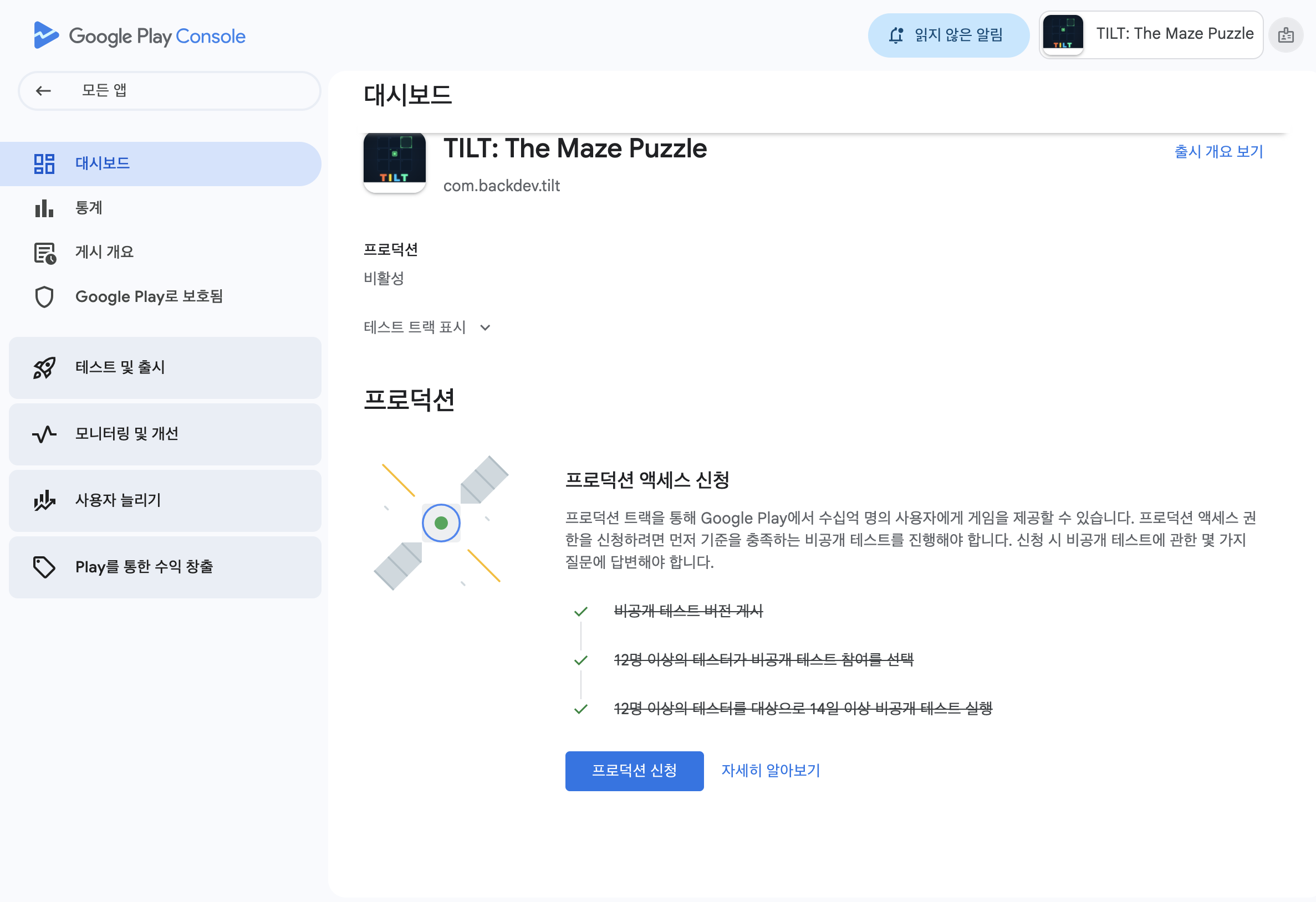
When you click it, you'll be asked to answer a few questions. Here's a breakdown of what you'll be asked and how I answered each question.
Step 1. Enter your private test information
How to recruit testers
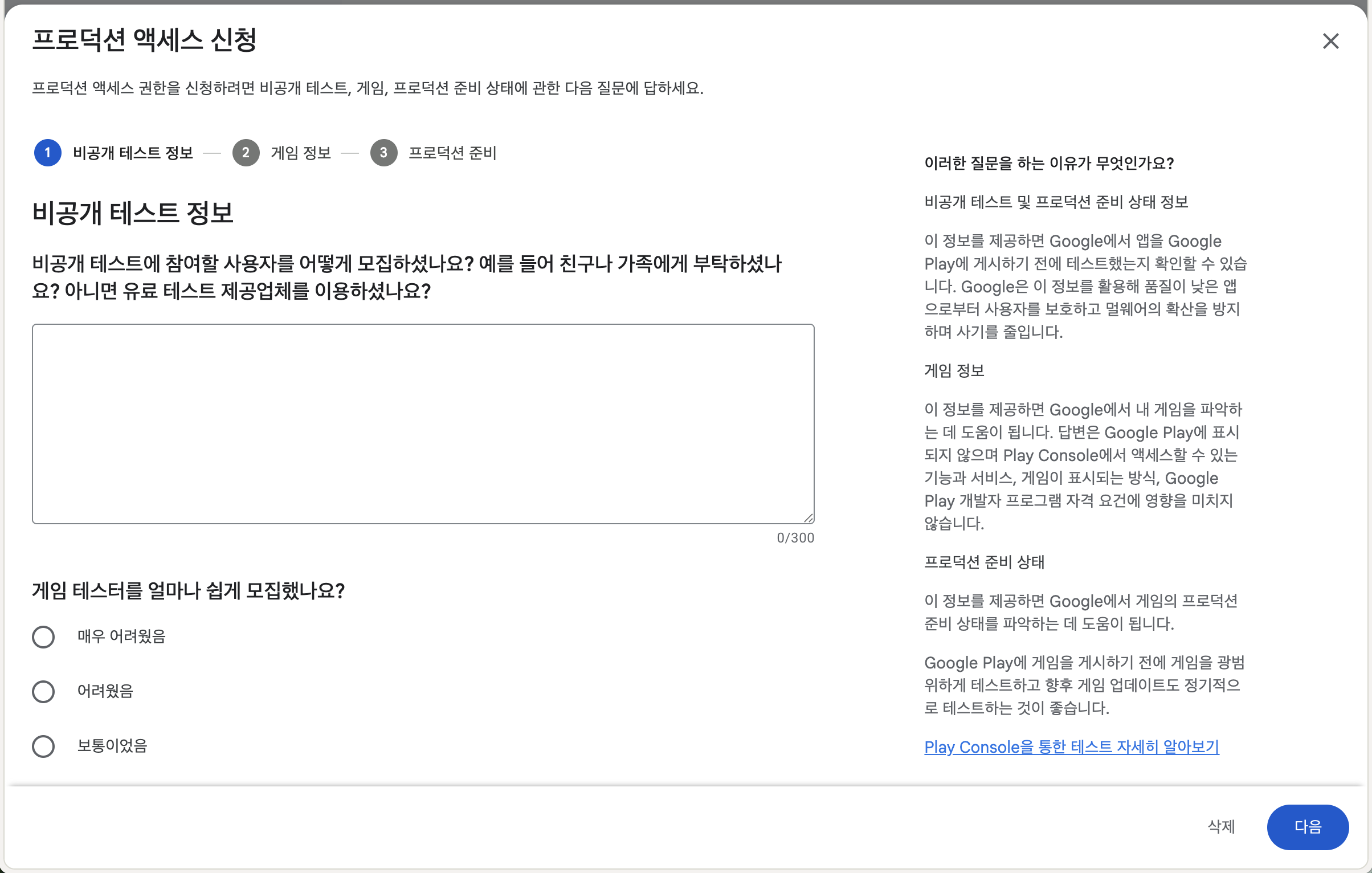
- How did you recruit users to participate in your private test?
- How easy was it to recruit testers?
My answer:
I posted on several communities and asked for testers.
AI suggested answer: Β
You've created a promotional post in the mobile app-development community group to request participation in a private test. In the post, I outlined the key features of the app, how to join the test, how to provide feedback, and the duration of the test. I fielded questions in the comments and shared the test link directly to interested users. We did not use a paid testing provider.
Tester engagement and feedback
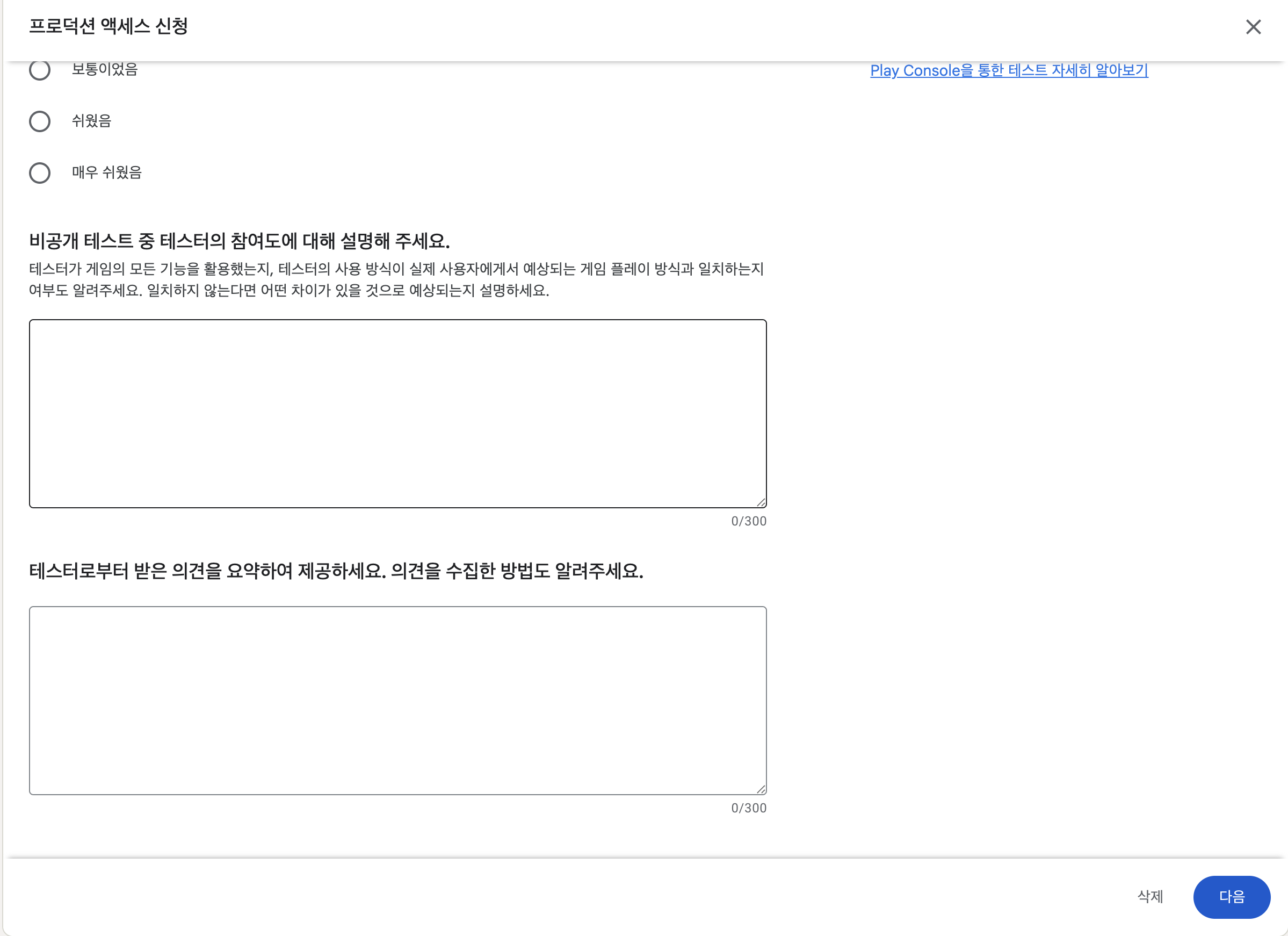
- Please describe your tester engagement during testing.
- Please summarize tester feedback and tell us how you gather it.
My answer:
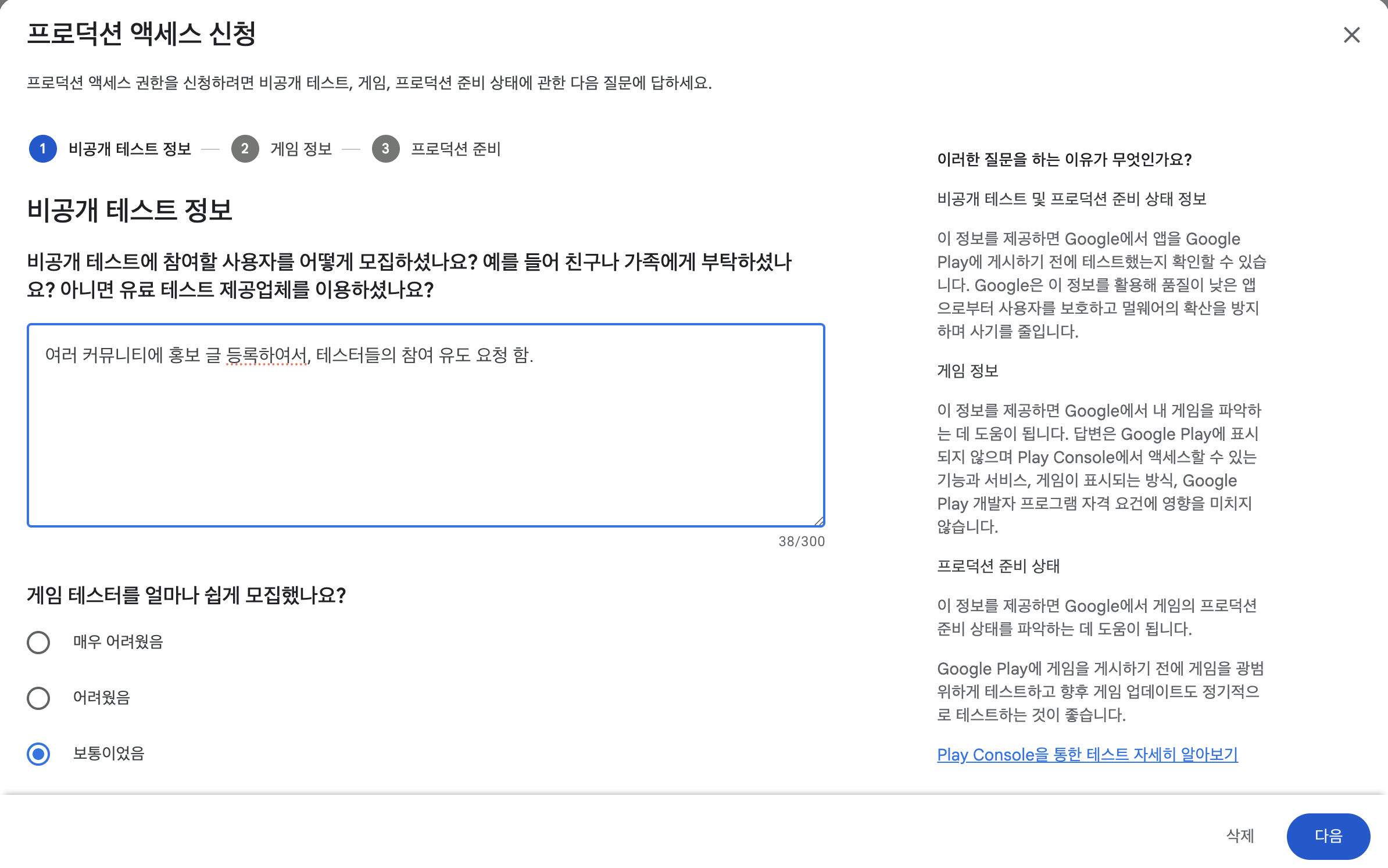
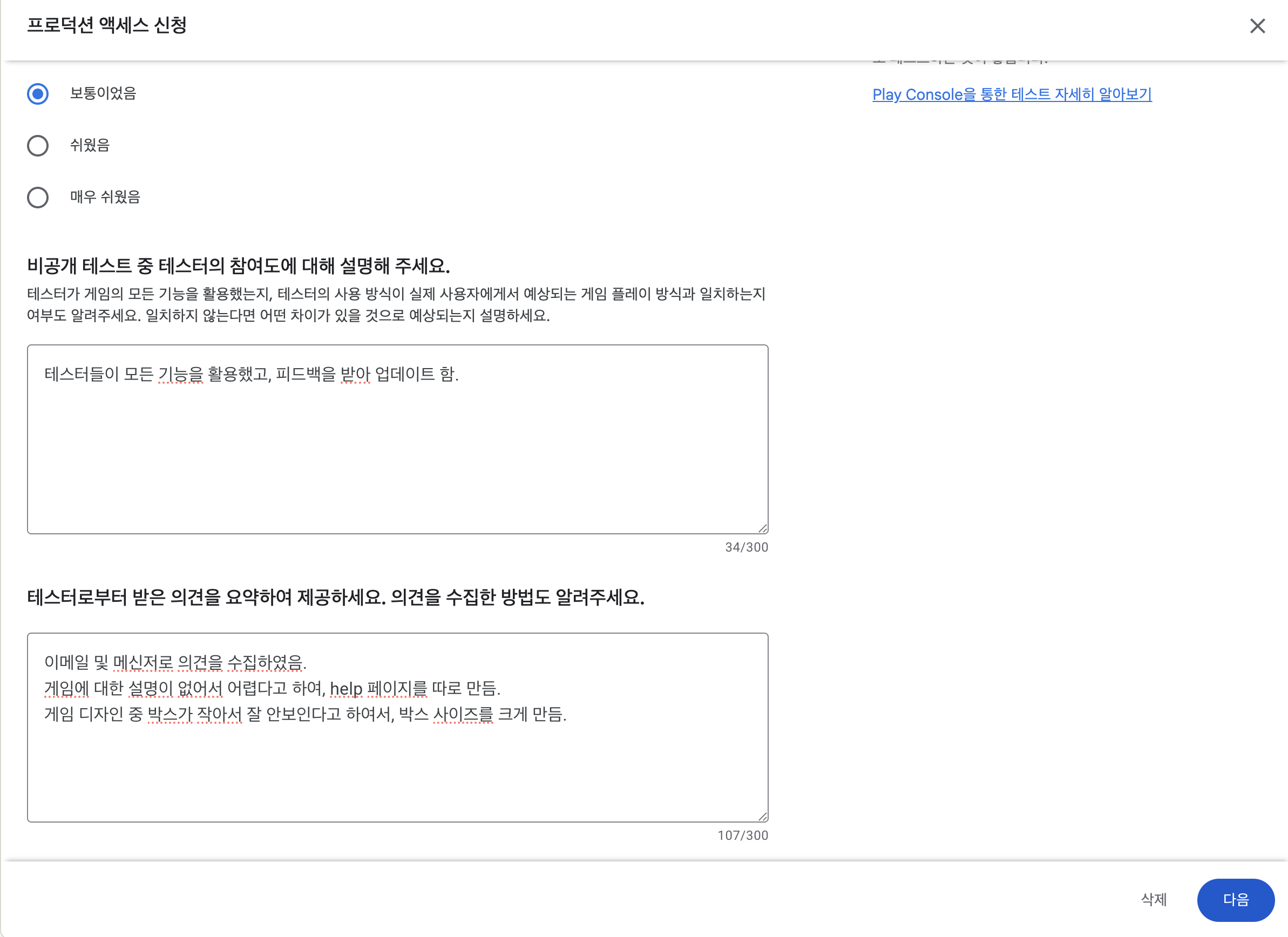
- Testers utilized all features and made updates based on their feedback.
- Collected feedback via email and messenger.
- The game was hard to understand because there was no explanation → Added a help page.
- The box is small and hard to see → Increased the size of the box.
AI suggested answers:
Testers thoroughly used key features such as creating, renaming, and deleting chains, categorizing and managing playlists, and provided feedback on improvements for each feature.
Key feedback:
- Need for multilingual support (considering international users)
- Requested the ability to categorize and manage chains
How we collected feedback: community post comments, emails, and Google Forms. We organized the feedback and prioritized multilingual support and chain management features.
Step 2. Enter app information
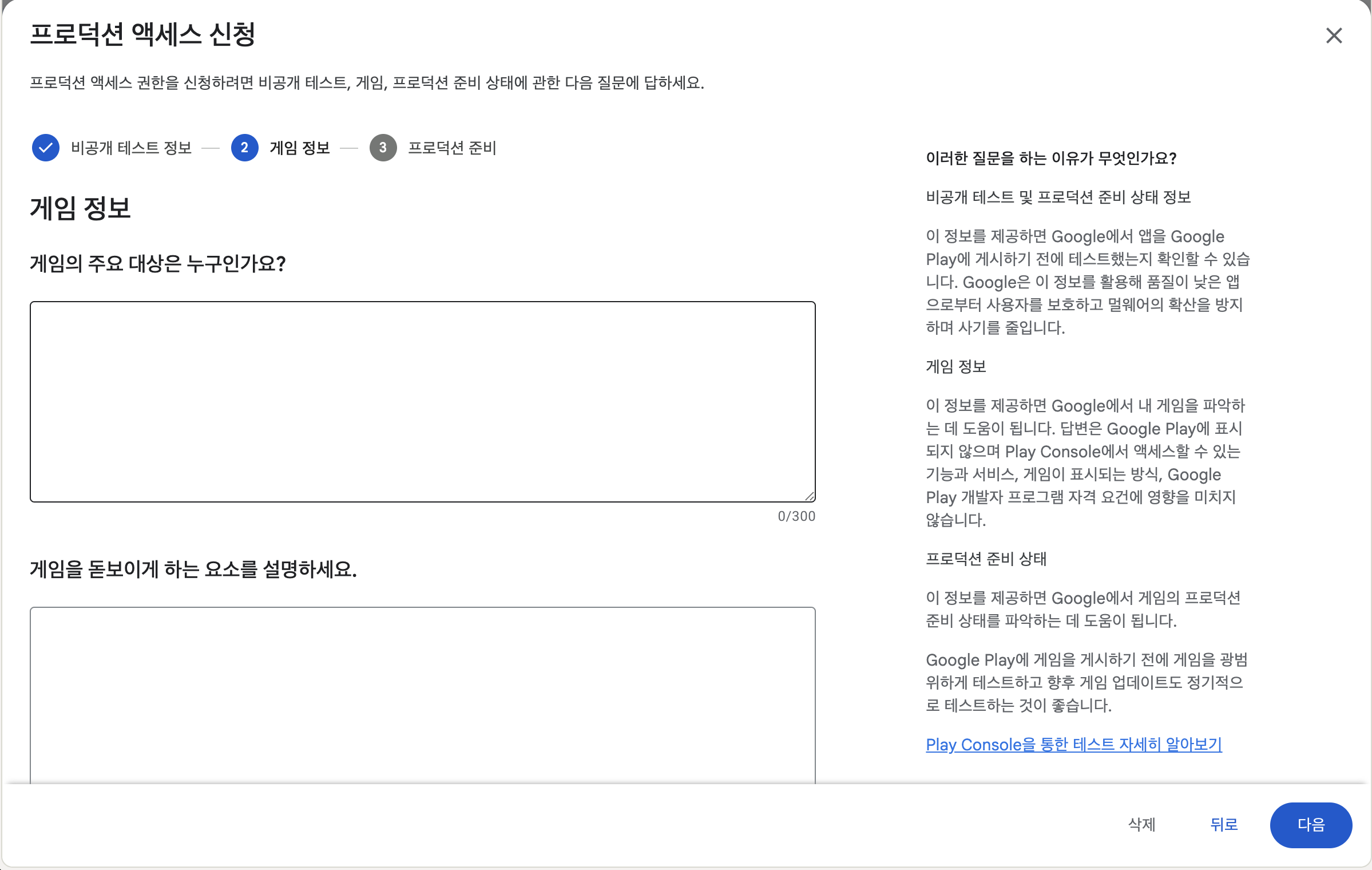
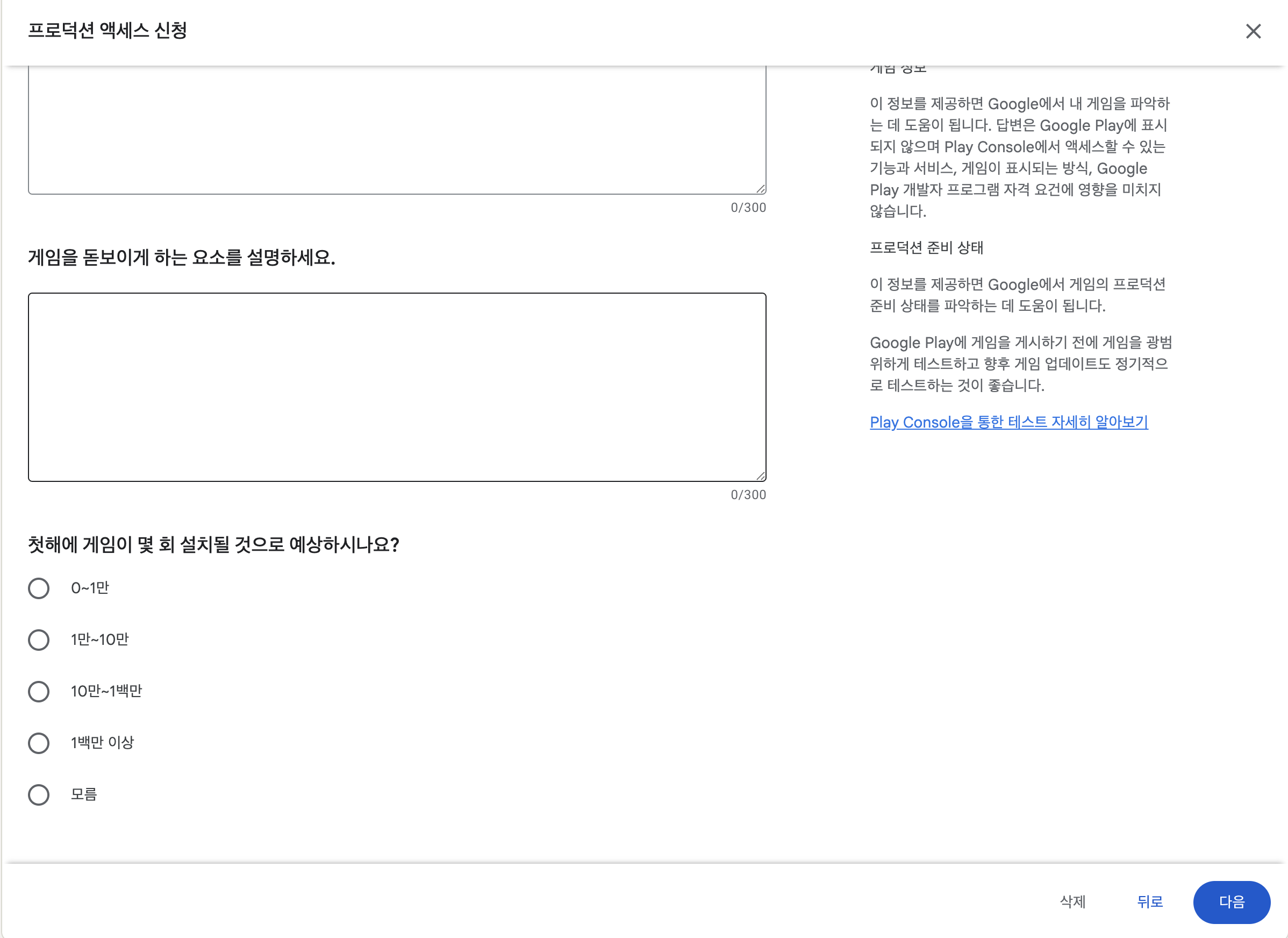
Apps categorized as games will be directed to the "Game Information Page", while other questions will be asked for general apps. Below is the screen based on ChainPlay (general app).
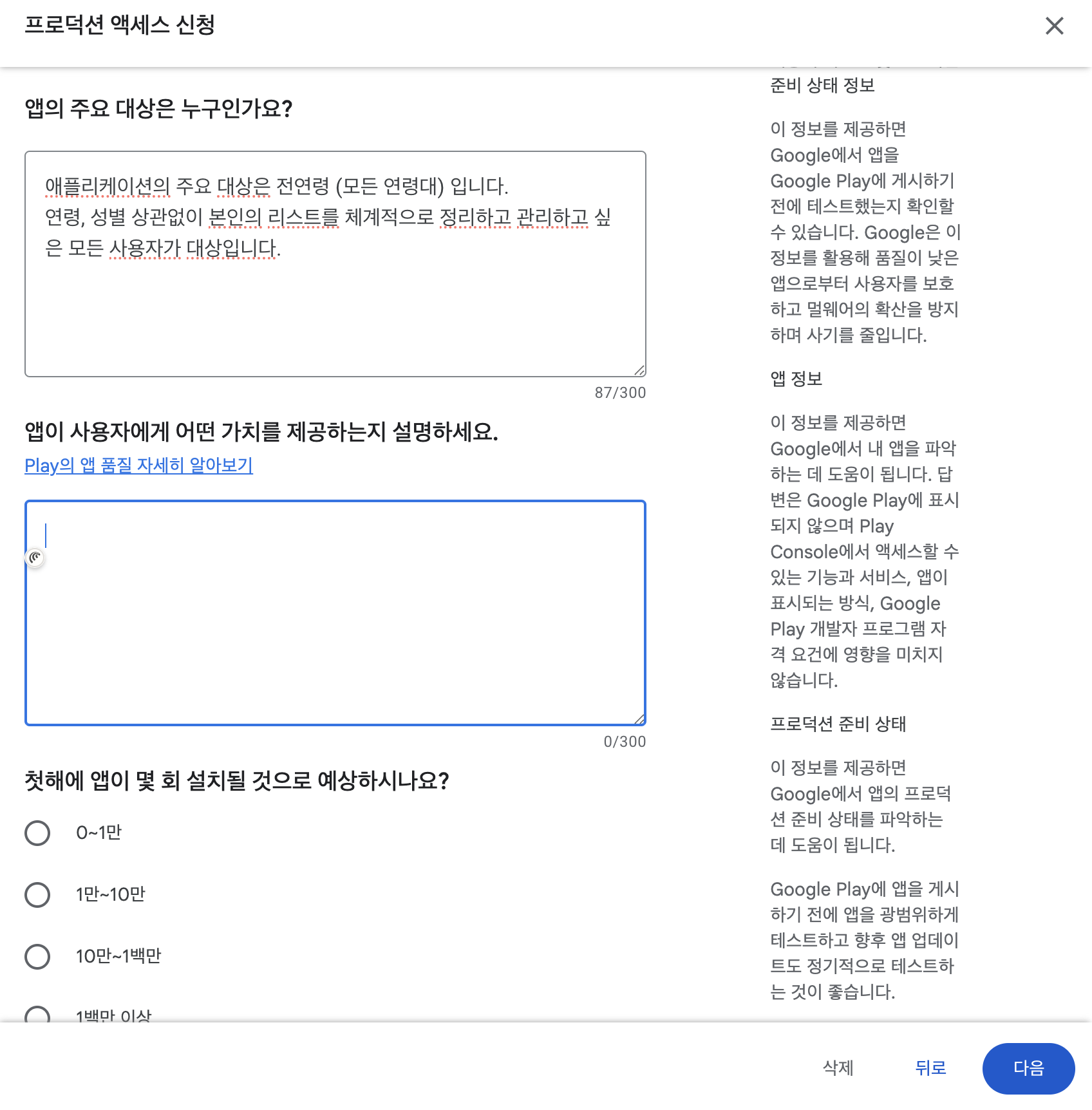
- Who is the app's primary audience?
- What makes your app stand out?
- What is the expected number of installs in the first year?
My answer:
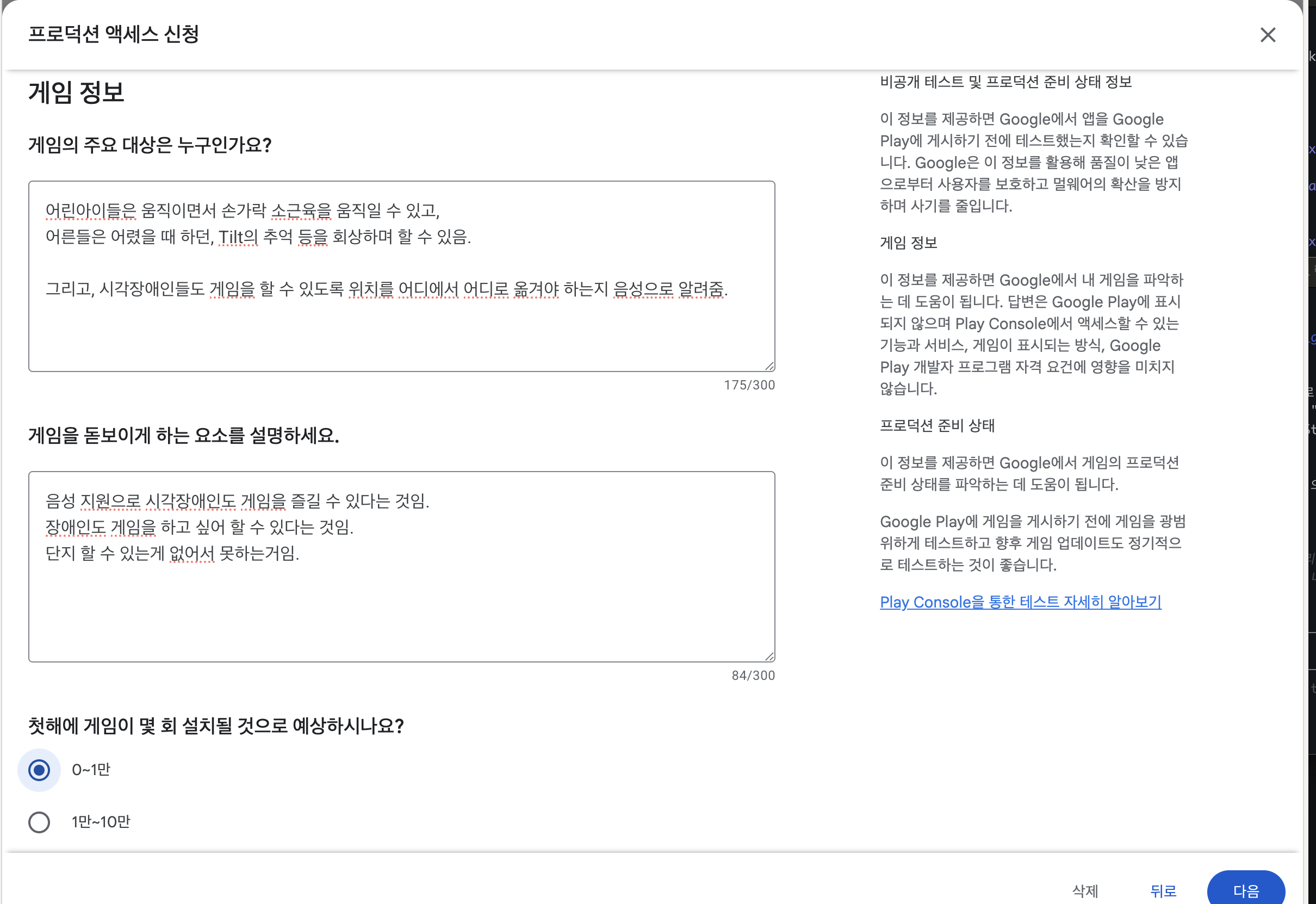
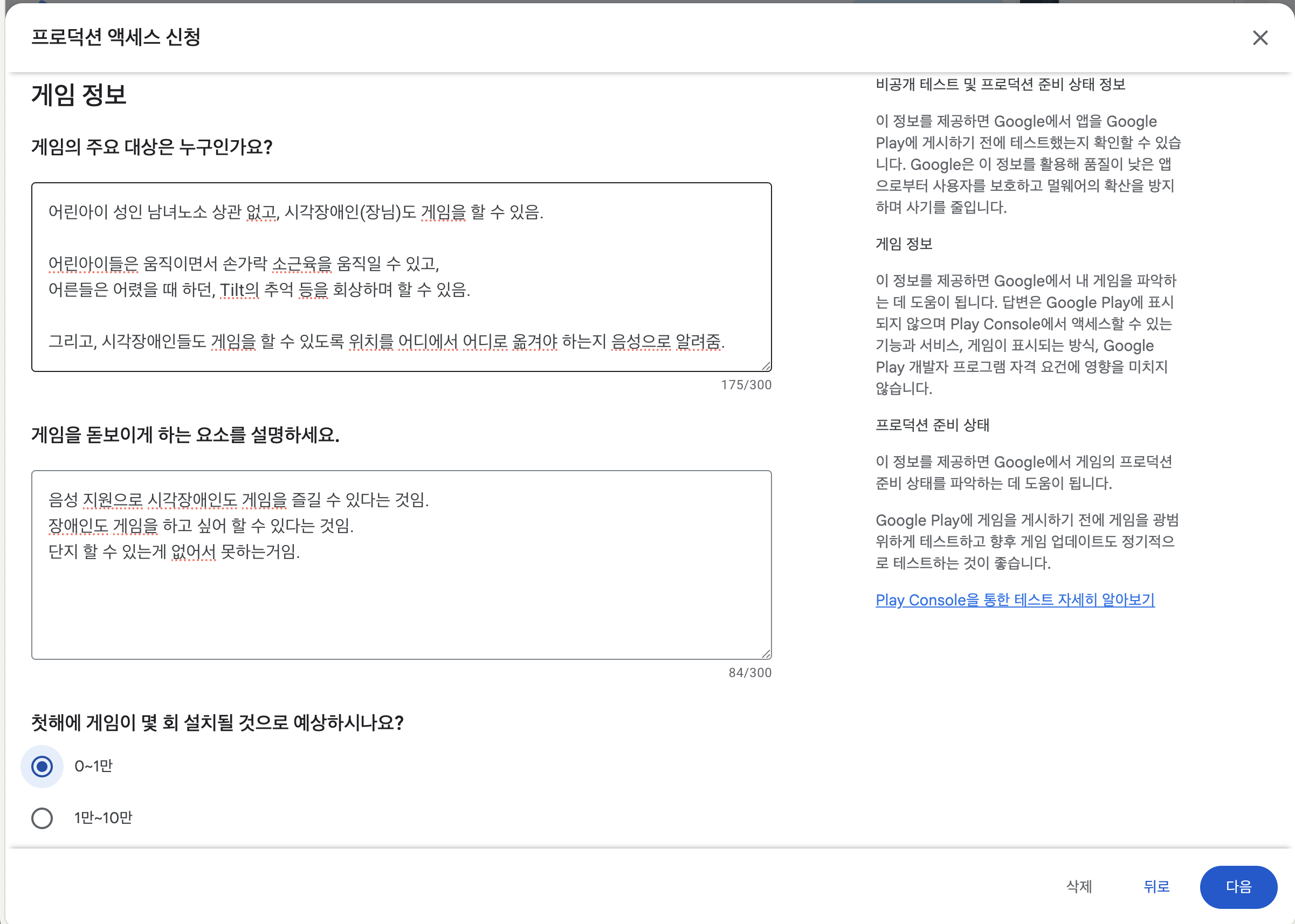
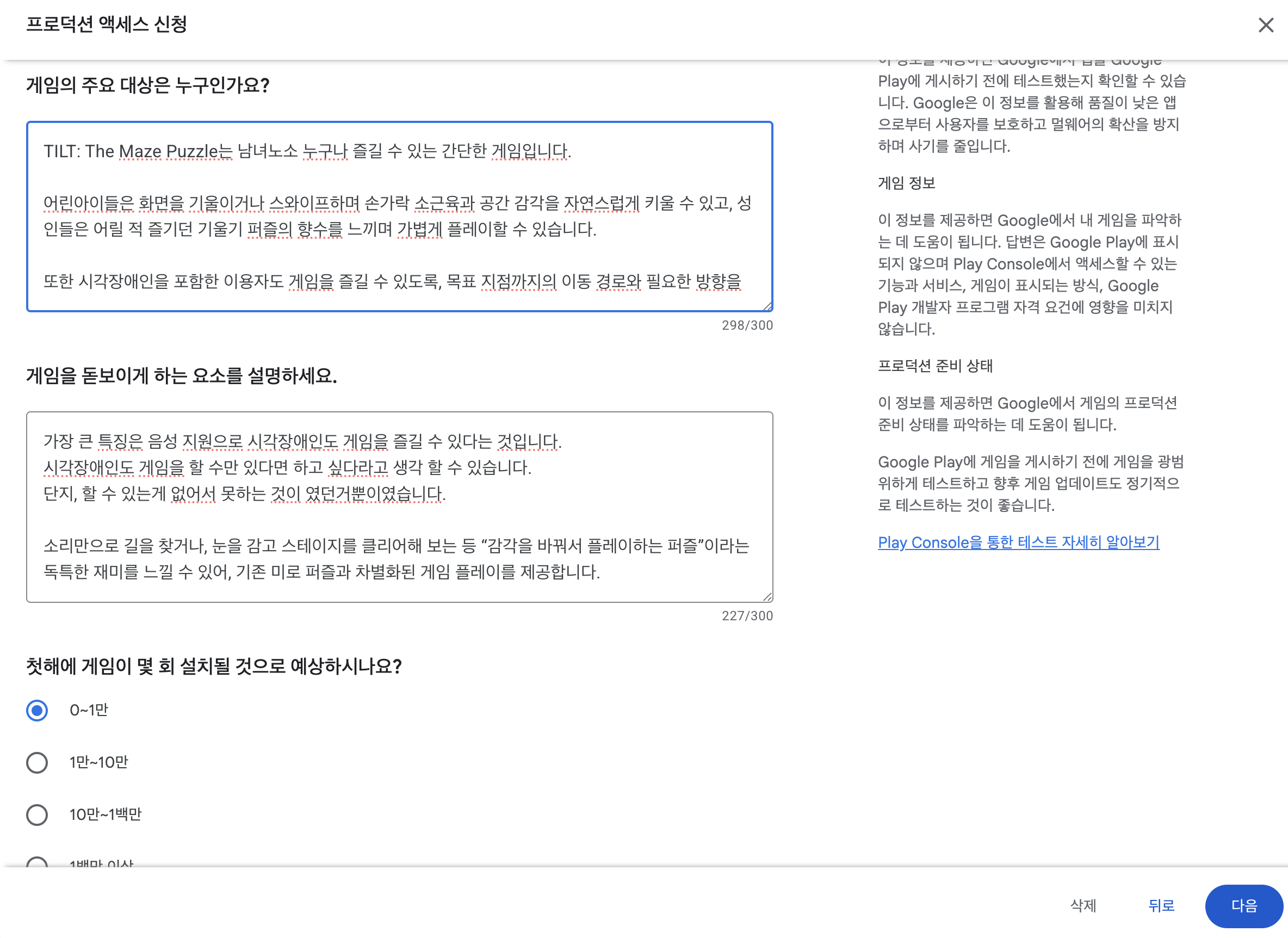
Main Audience: All ages (anyone who wants to organize their lists, regardless of age or gender)
Differentiators: freedom to create playlists as you like, categorize and manage them in chains.
Step 3. Check for production readiness
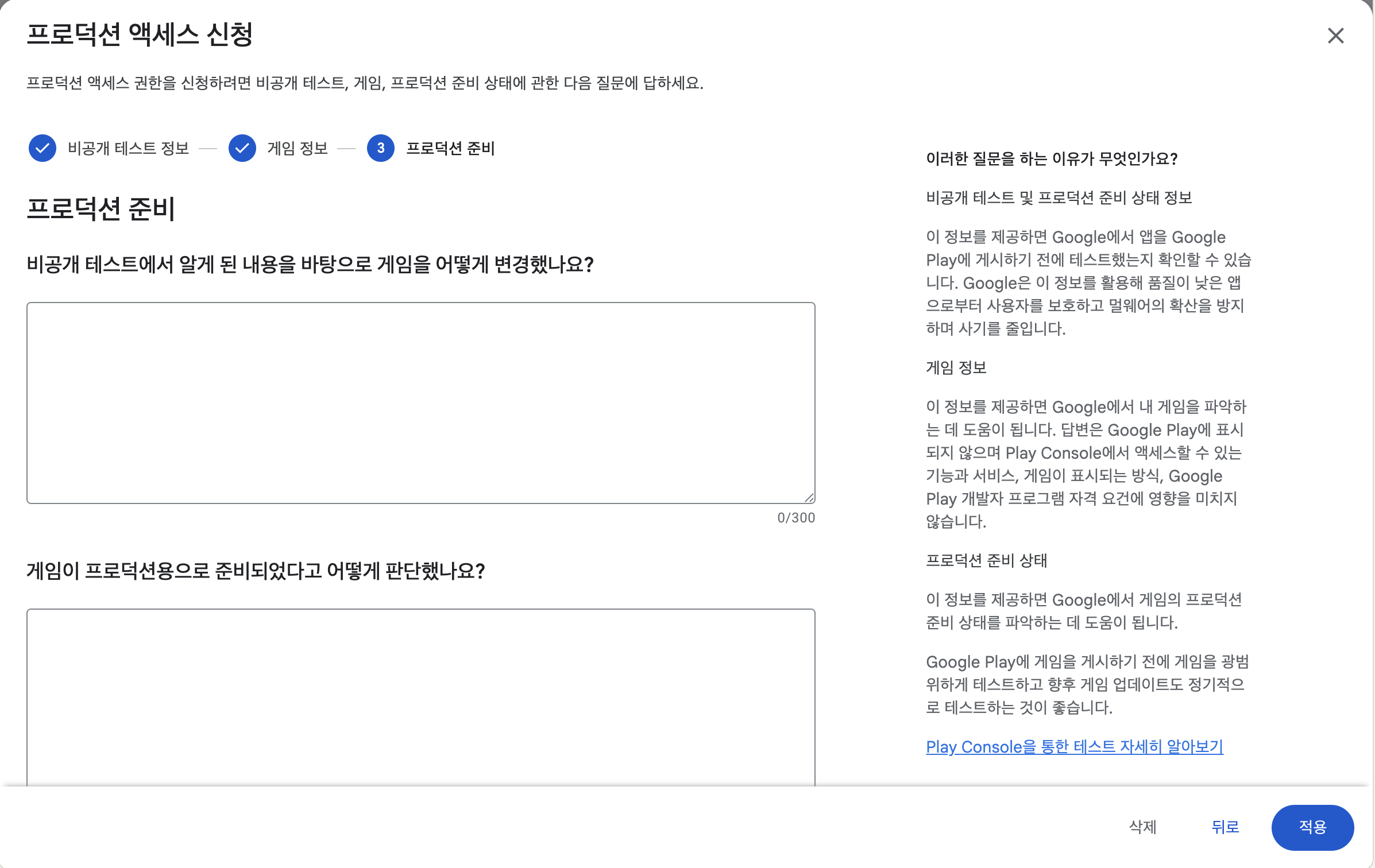
- How did you make changes to your app based on what you learned in private testing?
- How did you determine that it was ready for production deployment?
My answer:
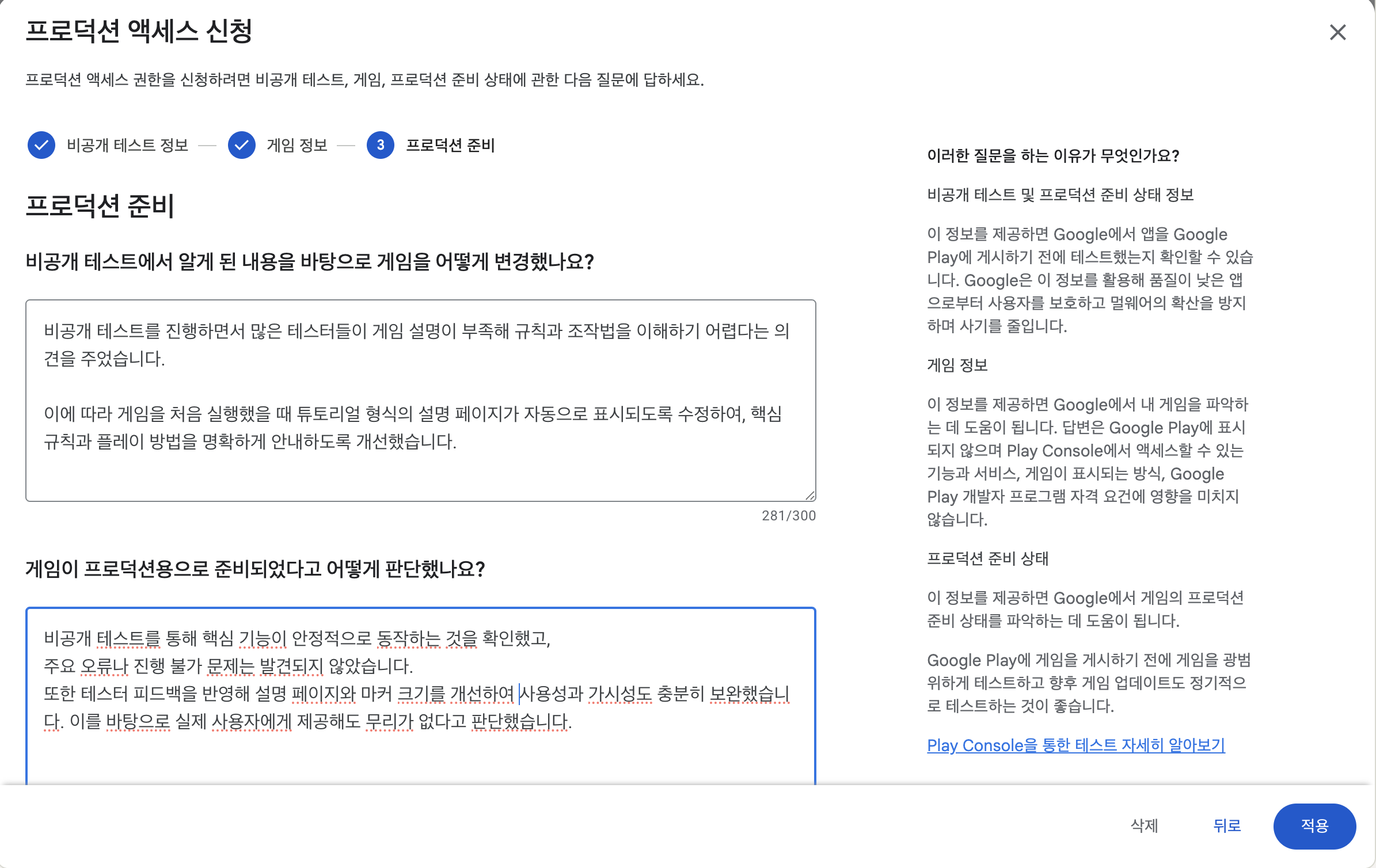
We've verified that the core functionality (multilingual support, chain management) is stable, and we haven't found any major errors or inability to proceed issues. We improved the features and UI/UX based on tester feedback and verified that it works well in the real world.
Application complete
Once everything is filled in and submitted, you'll see the screen below.
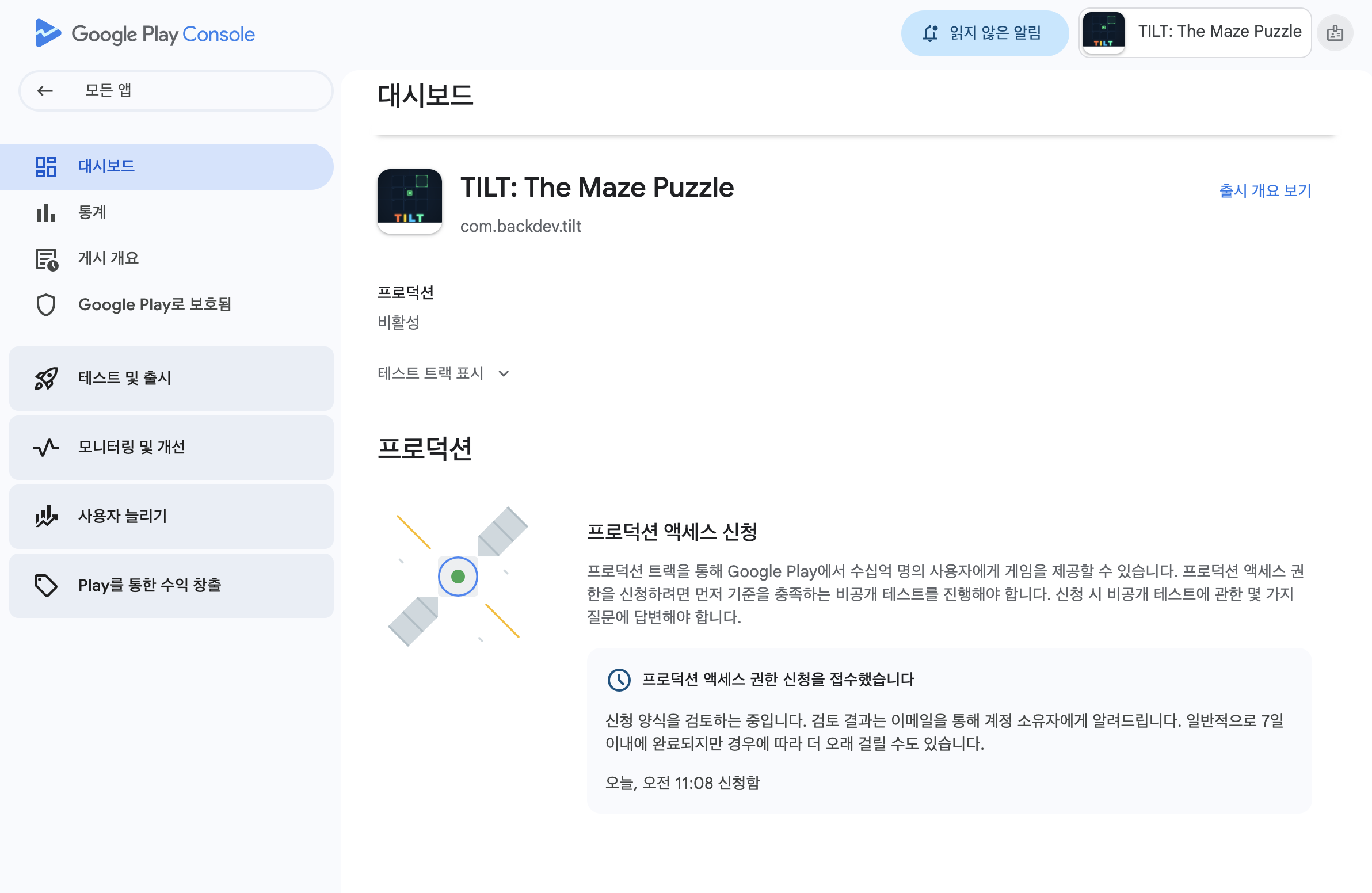
Your submission is complete. Now all you have to do is wait for Google's review.
backtodev
A 40-something PM returns to code. Learning, failing, and growing.