I Built My Own Ad-Free, Payment-Free Playground for My Kids — Kiosk Mode on the Web
Why I Built This
There's an old MacBook sitting around unused at home. Its specs are hopelessly outdated by today's standards, but plenty good enough for kids to practice using a mouse and have fun. So I installed a few kids' game apps — and within a few days, problems started showing up.
Too many payment popups.
Even in a free app, a "Unlock the full version" window pops up after every single round. My kid can't read yet, so they just tap the big button — which happens to be the one that leads to a payment screen. Ads are just as bad. Trying to pick a coloring page triggers a full-screen ad, the close button (×) doesn't appear for five seconds, and even then it's tucked into a tiny corner of the screen. A kid's finger can't hit it precisely, so it ends up tapping the ad link and opening a browser instead.
On top of that: my kid would accidentally minimize the window mid-play, or tap the Dock to open another app, or go poking around in system settings — repeatedly. I ended up needing to sit right next to them the whole time, at which point it was basically no different from just handing over a tablet.
So I decided to just build it myself. The requirements were simple.
- No ads, no payments. No outbound links either.
- Full screen the moment it starts. Minimize any room for the kid to touch something else.
- A kid can't get out alone. A parent, on the other hand, needs an easy way out.
- It ends automatically once time is up.
- Everything operable with just the mouse. A kid who can't read yet should be able to play just by recognizing icons.
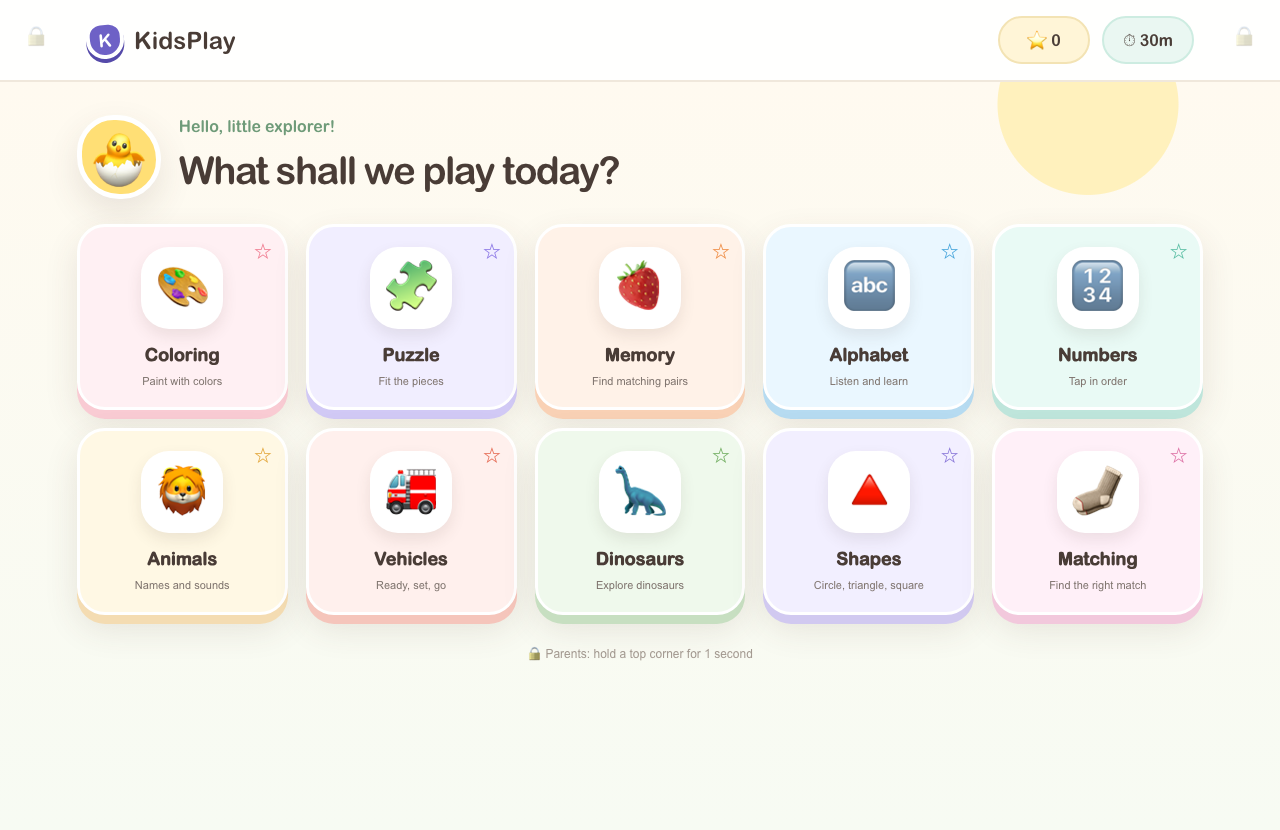
The result is a web app built with React + Next.js. It packs in ten activities — coloring, puzzles, matching pairs, and more. This post specifically covers how I built "a screen a kid can't escape from" using nothing but browser APIs.
Setting Up the Overall Structure: Splitting Parent and Kid Screens
The very first decision was to split the screen entirely into two modes. Only a parent touches the settings; a kid only ever plays.
const [mode, setMode] = useState<"parent" | "kids">("parent");

if (mode === "parent") return <ParentScreen ... onStart={start} />;

return (
  <div className="kid-mode">
    {/* kid screen */}
  </div>
);
I split this with a single state value instead of routing. There's a reason. Splitting by URL opens a hole a kid can escape through — hitting back or fiddling with the address bar. Managed purely by state, there's exactly one exit path in the code (the exit() function), so there's only one place that needs to be locked down.
The parent screen lets you choose three things.
| Setting | Options | Purpose |
|---|---|---|
| Child's age | Ages 2–3 / 4–5 / 6–7 | Adjusts game difficulty and stars earned |
| Play time | 15 / 30 / 45 / 60 min | Auto-end timer |
| First activity | Playground (all) or a specific game | Which game to start with |
The age setting flows straight down into each game and changes the number of problems shown.
export const difficultyCount = (age: AgeGroup, values: [number, number, number]) =>
  values[age === "toddler" ? 0 : age === "preschool" ? 1 : 2];
Game components use it like difficultyCount(age, [4, 6, 9]). Ages 2–3 get 4, ages 4–5 get 6, ages 6–7 get 9. This one function keeps difficulty consistent across all ten games.
Step 1. Entering Fullscreen
The core piece here is the Fullscreen API. There's a trap hiding in it, though.
A fullscreen request must be called from inside a direct user gesture (a click, a key press). Call it automatically inside useEffect and the browser silently rejects it. So it's wired into the click handler for the "Start full screen" button on the parent screen.
const start = () => {
  const seconds = settings.minutes * 60;
  setRemaining(seconds);
  setSessionEnd(Date.now() + seconds * 1000);
  setActiveGame(selectedGame);
  setMode("kids");
  setTimedOut(false);

  const root = document.documentElement as HTMLElement & {
    webkitRequestFullscreen?: () => Promise<void> | void;
  };
  const request = root.requestFullscreen || root.webkitRequestFullscreen;
  if (request) Promise.resolve(request.call(root)).catch(() => undefined);
};
A few things worth noting.
The webkitRequestFullscreen fallback is necessary. Older Safari (including the browser on the old MacBook I was targeting) either doesn't have the standard requestFullscreen or behaves differently. A type assertion adding the optional property handles both.
.catch(() => undefined) matters. A fullscreen request can fail — browser settings, running inside an iframe, a user having previously denied it, and so on. An unhandled promise rejection here clutters the console and can trigger an error overlay depending on the context. A failed fullscreen entry should never block the whole app. So a failure is swallowed quietly, and the app just keeps working in windowed mode.
It targets document.documentElement. Making the document root fullscreen — rather than a specific div — keeps modals and tooltips from getting clipped off-screen.
The exit path mirrors it symmetrically.
const exit = () => {
  setExitGate(false);
  setTimedOut(false);
  setSuccess(null);
  setMode("parent");
  setActiveGame(null);
  setSessionEnd(null);

  const doc = document as Document & {
    webkitExitFullscreen?: () => Promise<void> | void;
  };
  const exitFullscreen = doc.exitFullscreen || doc.webkitExitFullscreen;
  if (exitFullscreen) Promise.resolve(exitFullscreen.call(doc)).catch(() => undefined);
};
exitFullscreen lives on document, while requestFullscreen lives on an element. I mixed these two up at first and spent a while confused about it.
Step 2. Keeping a Kid from Accidentally Breaking the Screen
Getting into fullscreen isn't the end of it. Once a kid starts mashing the mouse around, all kinds of things can go wrong.
- Right-click → a context menu pops up showing "Save image," "View page source"
- Double-click → text gets selected and highlighted blue
- Scroll wheel → the page scrolls, pushing game buttons off-screen
- Any key on the keyboard → triggers browser shortcuts
These events are blocked only while in kid mode.
useEffect(() => {
  if (mode !== "kids") return;

  const prevent = (event: Event) => event.preventDefault();
  const preventKey = (event: KeyboardEvent) => event.preventDefault();

  document.addEventListener("contextmenu", prevent);
  document.addEventListener("dblclick", prevent);
  document.addEventListener("wheel", prevent, { passive: false });
  document.addEventListener("keydown", preventKey);

  return () => {
    document.removeEventListener("contextmenu", prevent);
    document.removeEventListener("dblclick", prevent);
    document.removeEventListener("wheel", prevent);
    document.removeEventListener("keydown", preventKey);
  };
}, [mode]);
The key detail here is adding { passive: false } on wheel. Modern browsers register wheel and touchmove listeners as passive by default, for scroll performance. In a passive listener, preventDefault() is silently ignored — the console just shows a "Unable to preventDefault inside passive event listener" warning. Not knowing this, I burned some time wondering "why isn't scrolling getting blocked?"
Returning early when mode !== "kids" matters too. Blocking right-click and keyboard on the parent screen as well would stop a parent from adjusting settings. And the cleanup function absolutely has to remove the listeners — otherwise events stay blocked even after leaving kid mode once.
Honestly, It's Not Perfect
A web app can't block the Esc key or F11. The browser's path out of fullscreen is deliberately unable to be intercepted by a site, for security reasons. This is a web standard doing exactly what it's designed to do, and there's no way around it (and if there were, that would be far more dangerous).
So I reset the goal to something realistic. Not "impossible to escape," but "won't be escaped by accident." The odds of a 2-to-7-year-old randomly mashing the mouse and precisely hitting Esc are low. In actual weeks of use, my kid never once escaped fullscreen. If truly airtight locking is required, that calls for OS-level kiosk mode too — macOS Guided Access, Chrome's --kiosk flag, and the like.
Step 3. Building a Door Only a Parent Can Open
Just as important as keeping a kid from getting out is making sure a parent can get out easily. I started with a fixed PIN, and dropped it quickly. There's a reason.
- Kids watch and memorize it. A four-digit number gets memorized faster than you'd think.
- Parents forget it. A number you rarely type is guaranteed to be forgotten.
- It has to be stored somewhere — and stashing it in browser localStorage makes it fully visible in dev tools.
So instead I switched to a freshly generated multiplication problem, every single time.
function createMathProblem() {
  const left = Math.floor(Math.random() * 8) + 2;
  const right = Math.floor(Math.random() * 8) + 2;
  return { left, right, answer: left * right };
}
Multiplication from 2 through 9. Anyone who knows their times tables solves it in three seconds. A preschooler who hasn't learned them yet, can't. With nothing to memorize, a kid can't peek and a parent can't forget. And with no secret to store, digging through localStorage turns up nothing.
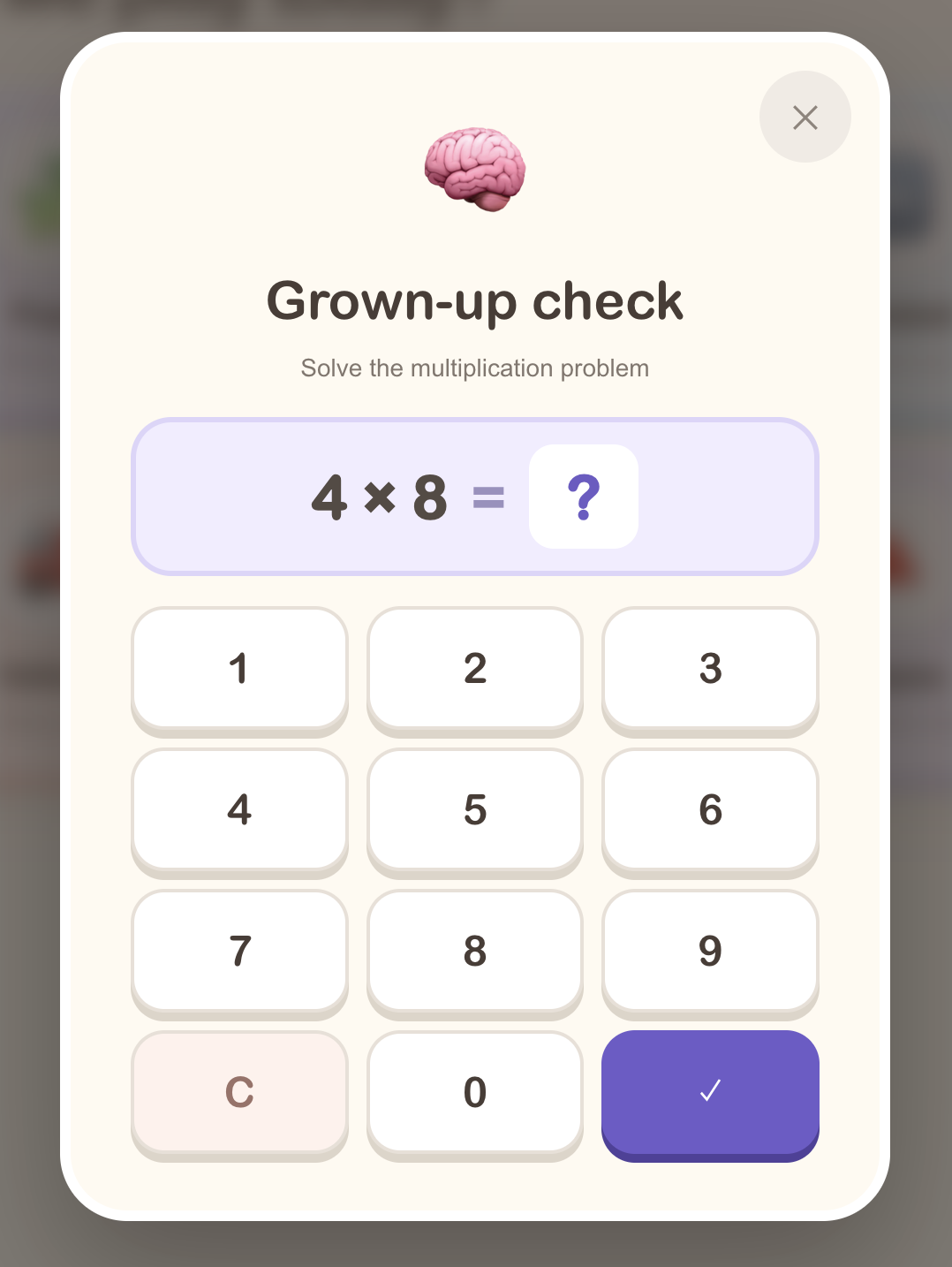
The way into that door is also designed so a kid can't stumble into it by accident. The lock icon in the top corner of the screen only opens after being held for 1 second.
const holdTimer = useRef<number | null>(null);

const startHold = () => {
  holdTimer.current = window.setTimeout(onExitRequest, 1000);
};
const stopHold = () => {
  if (holdTimer.current) window.clearTimeout(holdTimer.current);
  holdTimer.current = null;
};

<button
  className="parent-corner left"
  onMouseDown={startHold}
  onMouseUp={stopHold}
  onMouseLeave={stopHold}
  onTouchStart={startHold}
  onTouchEnd={stopHold}
  aria-label="Parent menu: hold for 1 second"
>🔒</button>
The key detail is wiring stopHold into onMouseLeave too. If the mouse is dragged off the button while still held down, onMouseUp never fires on this element — which means the timer survives, and a parent-check modal suddenly pops up while the kid is playing somewhere else on the screen. This line was added after actually hitting that exact bug.
Touch events (onTouchStart / onTouchEnd) are wired up alongside the mouse ones so it also works on a tablet.
Wrong answers are handled like this.
const submit = () => {
  if (!answer) return;
  if (Number(answer) === problem.answer) {
    window.setTimeout(onExit, 250);
    return;
  }
  setWrong(true);
  window.setTimeout(() => {
    setAnswer("");
    setProblem(createMathProblem());   // pull a fresh problem
    setWrong(false);
  }, 500);
};
A wrong answer triggers a 0.5-second shake animation, and then generates a brand new problem. Keep giving the same problem, and a kid mashing random numbers could eventually get lucky. A fresh problem every time resets those odds each time.
The 250ms delay on a correct answer is purely a feel decision. If the screen snapped away the instant the right answer was entered, it felt jarring. A short pause made it feel much more natural.
Step 4. The Play-Time Timer
Instead of repeating "we agreed on 30 minutes" out loud every time, the app ends the session on its own. There's one important implementation detail here.
Don't build the remaining time by subtracting one second at a time.
// Don't do this
setInterval(() => setRemaining((prev) => prev - 1), 1000);
Browsers throttle or fully pause timers when a tab goes inactive or a laptop lid closes. Do it this way, and 30 real minutes could pass while the app still thinks only 12 have gone by. So instead, the end time is stored as an absolute timestamp, and compared against the current time every second.
// On start
setSessionEnd(Date.now() + seconds * 1000);

// Checked every second
useEffect(() => {
  if (mode !== "kids" || !sessionEnd) return;

  const update = () => {
    const seconds = Math.max(0, Math.ceil((sessionEnd - Date.now()) / 1000));
    setRemaining(seconds);
    if (seconds === 0) {
      setTimedOut(true);
      setExitGate(true);
    }
  };

  update();                                    // once, immediately
  const timer = window.setInterval(update, 1000);
  return () => window.clearInterval(timer);
}, [mode, sessionEnd]);
This way, no matter how much the timer drifts or how long the tab sat in the background, the remaining time comes out accurate. It's also necessary to call update() once right after registering setInterval — otherwise the remaining time doesn't show up on screen for that first second.
Once time runs out, the parent-check modal from earlier appears with no close button.
{!timedOut && <button className="math-close" onClick={onClose}>✕</button>}
If timedOut is true, the × button isn't even rendered. Getting out requires solving the multiplication problem, so a kid can't extend the session on their own.
Step 5. Progress Saving and Offline Support
Stars and stickers are saved to localStorage. No server, no account. Never sending a kid's data to a server felt like the most reliable form of privacy protection I could offer.
useEffect(() => {
  try {
    window.localStorage.setItem("kidsplay-settings", JSON.stringify(settings));
  } catch { /* no-op */ }
}, [settings]);
try/catch is essential here. In private/incognito mode, or depending on browser settings, localStorage access itself can throw. A failed save isn't a reason for the app to stop working, so it's swallowed silently.
Reading it back is deferred by one tick with setTimeout(..., 0).
useEffect(() => {
  const restoreTimer = window.setTimeout(() => {
    try {
      const savedSettings = window.localStorage.getItem("kidsplay-settings");
      // ...
    } catch { /* Local storage can be disabled in private browsing. */ }
  }, 0);

  if ("serviceWorker" in navigator) {
    navigator.serviceWorker.register("/sw.js").catch(() => undefined);
  }

  return () => window.clearTimeout(restoreTimer);
}, []);
If the pre-rendered static HTML doesn't match the value restored from localStorage, a hydration mismatch warning shows up. Rendering the first pass with default values, then applying the saved value on the next tick, makes that warning disappear.
The same useEffect also registers a service worker. After the first visit, the app works without an internet connection from then on — useful in a car, or anywhere without Wi-Fi. For a kids' app, that turns out to matter more than I expected.
Troubleshooting Notes
Just the things I actually ran into.
| Symptom | Cause | Fix |
|---|---|---|
| Fullscreen won't turn on | Called from useEffect | Must be called from inside a click handler |
| Scroll doesn't get blocked | wheel is passive by default | Add the { passive: false } option |
| Parent modal pops up suddenly | Mouse dragged off the button while held | Wire stopHold into onMouseLeave too |
| Time doesn't line up | Subtracting one second at a time | Store the end time as an absolute timestamp and compare |
| Hydration warning | Reading localStorage on first render | Defer with setTimeout(..., 0) |
| Korean voice doesn't play | Called before the voice list loaded | Treat an empty list as Korean and retry |
That last one needs some explanation. speechSynthesis.getVoices() returns an empty array before the browser has fully loaded its voice list. If the app concludes "no Korean voice available" at that moment and falls back to English, it speaks English for the first few times right after launch.
const voices = synthesis.getVoices();
const koreanVoice = voices.find((voice) => /^ko([-_]|$)/i.test(voice.lang));
const canSpeakKorean = language === "ko" && (Boolean(koreanVoice) || voices.length === 0);
Adding voices.length === 0 to the condition means it assumes Korean when the list simply hasn't arrived yet. The regex /^ko([-_]|$)/i is written to match ko-KR, ko_KR, and ko alike, while excluding unrelated language codes like kok (Konkani).
Wrap-Up
Here's the core flow of a kids' kiosk screen built entirely with browser APIs.
- Split modes with a single state value — routing opens a hole to escape through via back navigation
- Fullscreen only from inside a click handler —
useEffectgets silently rejected - Block events only in kid mode —
wheelrequires{ passive: false } - Lock with a random multiplication problem instead of a fixed PIN — nothing to memorize, so a kid can't learn it and a parent can't forget it
- Timer runs on an absolute timestamp — subtracting a second at a time drifts whenever the tab pauses
- Storage is localStorage + try/catch — no server means no data that can leak
Fully locking down fullscreen is impossible on the web. But building it to the point where it "won't be escaped by accident" was achievable, and that was enough for a preschool audience.
Above all, I can now sit nearby doing something else without worrying about my kid tapping into a payment popup. For a project built over a few evenings, it turned out to be a pretty good deal.
The result is live and playable right now at kidsnara.pages.dev — no install, no login. I wrote up the process of shipping it for free on Cloudflare Pages separately, at Deploying a Free pages.dev Domain on Cloudflare Pages.
backtodev
A 40-something PM returns to code. Learning, failing, and growing.